
Preview
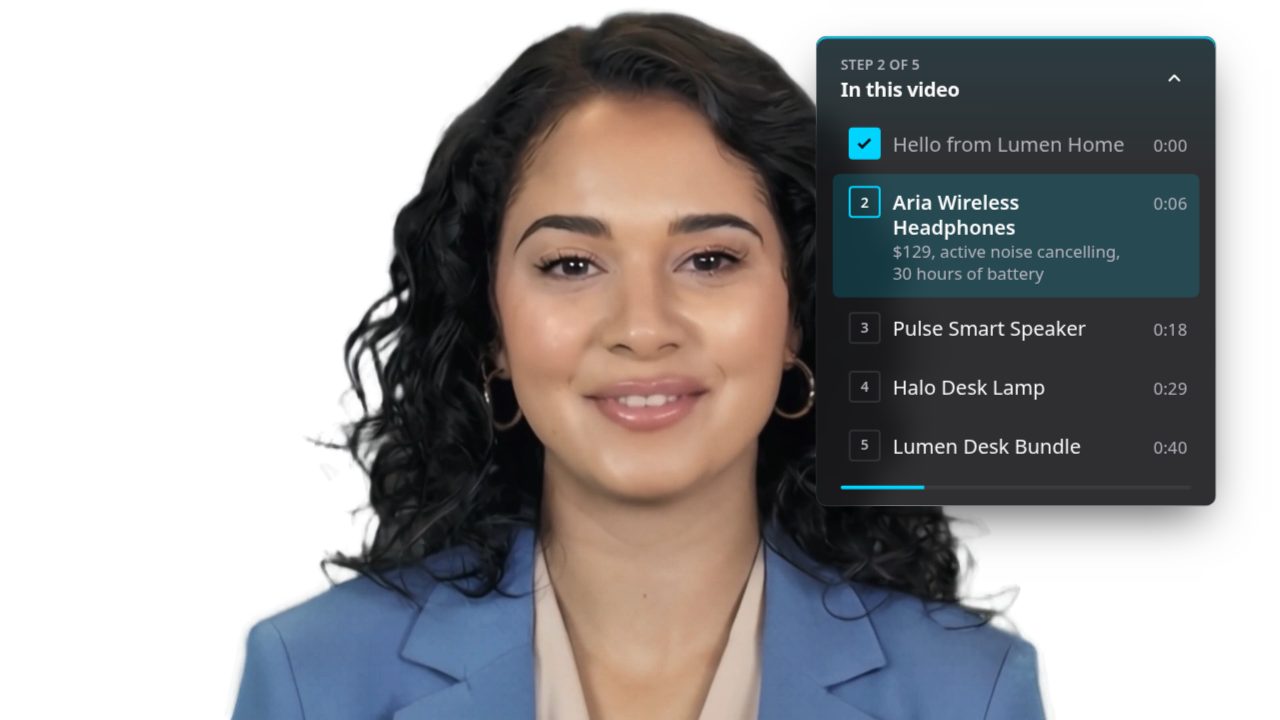
Tap a step to jump to it.
About
Steps shows the steps of a how-to, a recipe or a lesson beside the video and keeps pace with it. The step being played is highlighted, the ones already done are ticked, and a viewer can jump to any step.
- What it does: a panel on the left, on the right or along the bottom of the frame with every step, a progress bar and a count ("Step 2 of 5"). The viewer can fold it down to a single line showing the current step.
- Content: list the steps in the Steps setting, each with its text and the second it starts (and optionally when it ends). This is the same list Recipe Steps uses, so a recipe can switch without retyping. Leave the list empty and Steps uses the key moments of kind "step" from the video's analysis instead.
- Step 1: install Steps from the marketplace.
- Step 2: add one Steps overlay covering the whole timeline. It covers the whole frame and places its own panel, so do not resize it: pick Left, Right or Bottom in Position instead.
- Step 3: enter the steps, or leave them empty to use the video's analysis.
- Step 4: pick a theme and a size. Lean-back is for a TV across the room.
- How it behaves: while the video plays the panel is something to glance at and every click goes through to the video. When the viewer pauses, the panel can be tapped: a step jumps there, the arrow folds it, and a tap anywhere else gives the frame back. A keyboard or TV remote reaches it with Tab, or through the Show action.
- Remember progress (off by default) keeps the steps a viewer has finished ticked the next time they open the video, on that device.
- For power users: the plugin emits Step Reached and Step Clicked, and accepts the actions Next Step, Previous Step, Go To Step, Show Steps and Hide Steps.
- Example rule: on plugin:mp4e:steps:stepReached, add a condition that eventData.number equals 3, then run showOverlay on a tip for that step.
- Example rule: bind a key to pluginAction Show Steps so keyboard and remote viewers can open the panel while the video plays.
Settings
What a creator can set in the Studio, and what a host can set in its overrides.
Style
| Setting | Type | Default | What it does |
|---|---|---|---|
Fontfont | Text | - | A CSS font stack, e.g. "Georgia, serif". Use fonts the viewer's device already has; plugins cannot download fonts. Leave empty for the theme's own. |
Sizesize | One of | Normal | How large everything is, on top of scaling with the video. Lean-back is for a TV across the room. |
Themetheme | One of | Studio | The look. Pick the same theme on every family plugin in a video and they read as one set. |
Accent colouraccent | Colour | - | Buttons, highlights and the focus ring, as #rrggbb (or #rgb, rgb(), rgba()). Leave empty for the theme's own. The text on it is picked for you so it stays readable. |
Motionmotion | One of | Full | How things appear and move. A viewer who has asked their device for reduced motion always gets at most Reduced. |
Corner roundingradius | Number, 0 to 200 | - | Corner radius of panels and cards, in pixels of a 1920-wide frame. Leave empty for the theme's own. |
Background coloursurface | Colour | - | The panels' background, as #rrggbb (or #rgb, rgb(), rgba() for see-through). Leave empty for the theme's own. If the theme's text would not read on it, a readable one is used. |
Text colourtextColor | Colour | - | As #rrggbb (or #rgb, rgb(), rgba()). Leave empty for the theme's own (or the readable one picked for your background colour). |
Content
| Setting | Type | Default | What it does |
|---|---|---|---|
Stepssteps | List | - | Each step's text and the second it starts (end is optional: without it a step runs until the next one). Leave empty to use the key moments of kind "step" from the video's analysis. Strings interpolate, so a {{variable}} may supply a step's text or the whole list. |
Titletitle | Text | Steps | Heading at the top of the panel. |
Layout
| Setting | Type | Default | What it does |
|---|---|---|---|
Positionposition | One of | Right | Where the panel sits in the frame. Bottom lays the steps out in a row above the player's controls. |
Start foldedcollapsed | On or off | Off | Start as a single line showing the current step. The viewer can unfold it. |
Show timesshowTimes | On or off | On | Show when each step starts. |
Behavior
| Setting | Type | Default | What it does |
|---|---|---|---|
Remember progressrememberProgress | On or off | Off | Keep the steps a viewer has finished ticked the next time they open the video, on the same device. Stored in the player's per-plugin storage. |
Events and actions
Events you can react to
| Event | When it is sent | Data |
|---|---|---|
Step Clickedplugin:mp4e:steps:stepClicked | The viewer picked a step in the panel (the video then jumps to it). |
|
Step Reachedplugin:mp4e:steps:stepReached | The playhead entered a step: playback reached its start, or the viewer jumped into it. |
|
Actions a rule or the host can call
| Action | What it does | Its settings |
|---|---|---|
Next Stepnext | Jump to the start of the next step. | - |
Previous Stepprevious | Jump back to the start of this step, or to the previous one when this step has only just begun. | - |
Go To StepgoTo | Jump to the start of a step. |
|
Show Stepsshow | Show the panel unfolded and ready for taps, keys and the remote, until the viewer taps outside it, presses Back or plays again. | - |
Hide Stepshide | Hide the panel. Show Steps brings it back. | - |
What it can reach
- Reads the video's analysis
- Key moments
Versions
- v1.2.2November 4, 2026Current
What changed
1.2.2: a remote leaves at the edge of the plugin and with its first Back (kit 1.3.1). 1.2.0: the Atelier theme (kit 1.3.0). 1.1.0: on a player with clickable regions (mp4e.setHitRegions) the panel is tappable while the video plays — a row seeks, the fold button folds — and everything around it still reaches the video (family kit 1.2.0).
- v1.2.1November 3, 2026
What changed
1.2.0: the Atelier theme (kit 1.3.0). 1.1.0: on a player with clickable regions (mp4e.setHitRegions) the panel is tappable while the video plays — a row seeks, the fold button folds — and everything around it still reaches the video (family kit 1.2.0).
- v1.2.0October 25, 2026
What changed
1.2.0: the Atelier theme (kit 1.3.0). 1.1.0: on a player with clickable regions (mp4e.setHitRegions) the panel is tappable while the video plays — a row seeks, the fold button folds — and everything around it still reaches the video (family kit 1.2.0).
- v1.1.0October 11, 2026
What changed
1.1.0: on a player with clickable regions (mp4e.setHitRegions) the panel is tappable while the video plays — a row seeks, the fold button folds — and everything around it still reaches the video (family kit 1.2.0).
- v1.0.0October 10, 2026
What changed
First release: the family design system's five themes, three sizes and keyboard/remote navigation.